Why sentence-style capitalization matters for better documentation
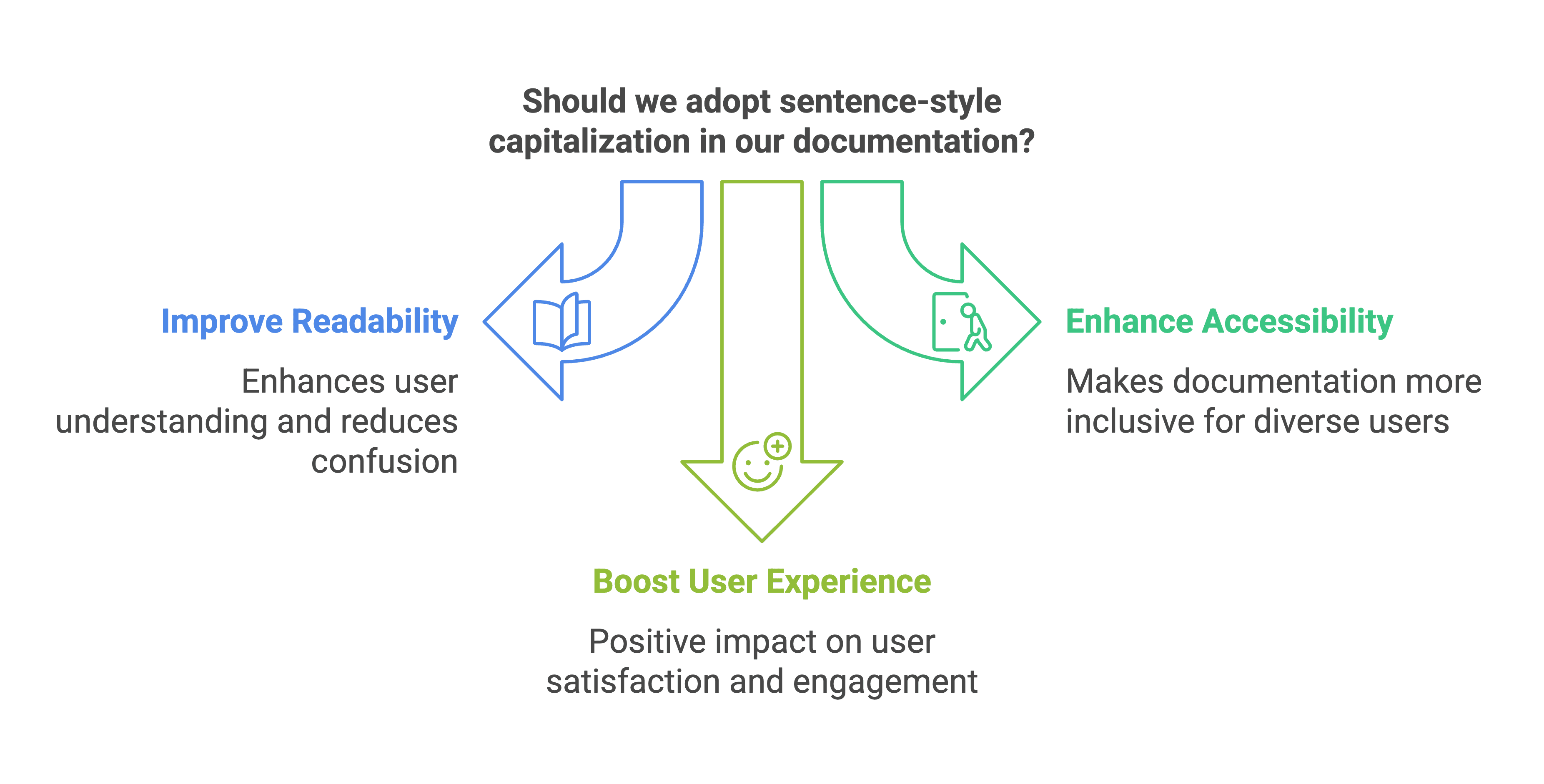
Did you know that 65% of users struggle with poorly formatted documentation? Sentence-style capitalization improves readability, accessibility, and user experience. Learn why top companies like Microsoft and Google recommend it—and discover tools to enforce it effortlessly.
- Written by
- Evan Shamoon (opens in a new tab)
- Published on
- Read time
- 4 min

Did you know that 65% of users find poorly formatted documentation harder to understand? Something as simple as capitalization style can make or break its impact. While sentence-style capitalization may seem like a small tweak, its ripple effects on readability, accessibility, and user experience are profound. Let’s explore why embracing this approach is not just a stylistic preference but a necessity.
Perspective on sentence-style capitalization
1. It feels natural to read
Imagine Reading a Title Where Every Word Starts With a Capital Letter. Feels awkward, right? Sentence-style capitalization mirrors how we naturally process text—with only the first word and proper nouns capitalized. This familiar structure eases the cognitive load on readers, allowing them to focus on understanding the content instead of wrestling with its presentation.
Consider the difference:
- Title case: "Understanding the Basics of Network Configurations"
- Sentence case: "Understanding the basics of network configurations"
The second version flows more naturally, making it easier to digest. Studies show that readers spend less time parsing text formatted in sentence case because it aligns with how people naturally read and process text. By keeping formatting familiar and intuitive, sentence case helps readers quickly understand headings and navigate content effortlessly. (Learn more about readability)
Example in practice: Imagine a FAQ section:
- Title case: "How Can I Reset My Password?"
- Sentence case: "How can I reset my password?" The latter feels conversational and intuitive, improving user experience.
2. It keeps things consistent
Ever noticed how a mix of styles across a document can feel chaotic? Sentence-style capitalization eliminates this issue, creating a seamless, predictable experience for readers. This consistency builds trust and professionalism, showing users you’ve put thought into every detail.
Example in practice: A technical manual with inconsistent headings:
- "How to Install the Software"
- "How To Use The Software Features" Switching to sentence case ensures every heading looks uniform and professional:
- "How to install the software"
- "How to use the software features"
3. It boosts accessibility
Here’s an interesting fact: lowercase letters have unique shapes that make them easier to recognize, especially for people with visual impairments or reading challenges like dyslexia. These benefits extend to a broader audience as well, including readers skimming content quickly or those using assistive technologies. By leveraging these natural shapes, sentence-style capitalization ensures that everyone, regardless of their abilities, can navigate and comprehend documentation more easily. Sentence-style capitalization leverages this advantage, ensuring your documentation is accessible to everyone—because inclusivity matters. For example, a study on typography accessibility highlights how lowercase text improves reading speeds for individuals with dyslexia. (The impact of typography on accessibility)
4. It’s backed by the best
Industry heavyweights like Microsoft and Google have embraced sentence-style capitalization in their style guides. Why? Because it’s proven to enhance clarity and align with modern standards. Following these guidelines shows you’re serious about creating top-tier documentation. (Microsoft Style Guide: Capitalization)

Tools to enforce sentence-style capitalization
Transitioning to sentence-style capitalization across your documentation doesn’t have to be a manual process. Here are some tools to help you enforce consistency and scale your efforts effectively:
- EkLine Docs Reviewer: An AI-powered tool that reviews your documentation for style guide compliance, including capitalization, helping teams save hours of manual reviews. (Learn more)
- Grammarly: A widely used writing assistant that identifies capitalization issues and suggests corrections, making it ideal for writers focused on quick fixes. (Learn more)
- ProWritingAid: A comprehensive editing tool that checks for consistency in style, grammar, and capitalization, perfect for teams managing large volumes of content. (Learn more)
- Microsoft Word and Google Docs Style Settings: Both platforms allow custom styles for headings and text, enabling you to enforce sentence-case capitalization with ease across shared documents.
- Vale: A customizable linter for technical documentation that can flag and correct capitalization errors, making it a powerful choice for maintaining style consistency at scale. (Learn more)
These tools not only save time but also ensure your documentation remains scalable, professional, and consistent, no matter the size of your project.
Why this matters
When it comes to technical documentation, the details matter. Adopting sentence-style capitalization is more than a design choice; it’s a commitment to clarity, consistency, and inclusivity. By making this simple switch, you can elevate your documentation from good to great, creating an experience that’s effortless and enjoyable for every reader.
So, the next time you sit down to write, remember: a little sentence-style capitalization goes a long way. Your readers will thank you.